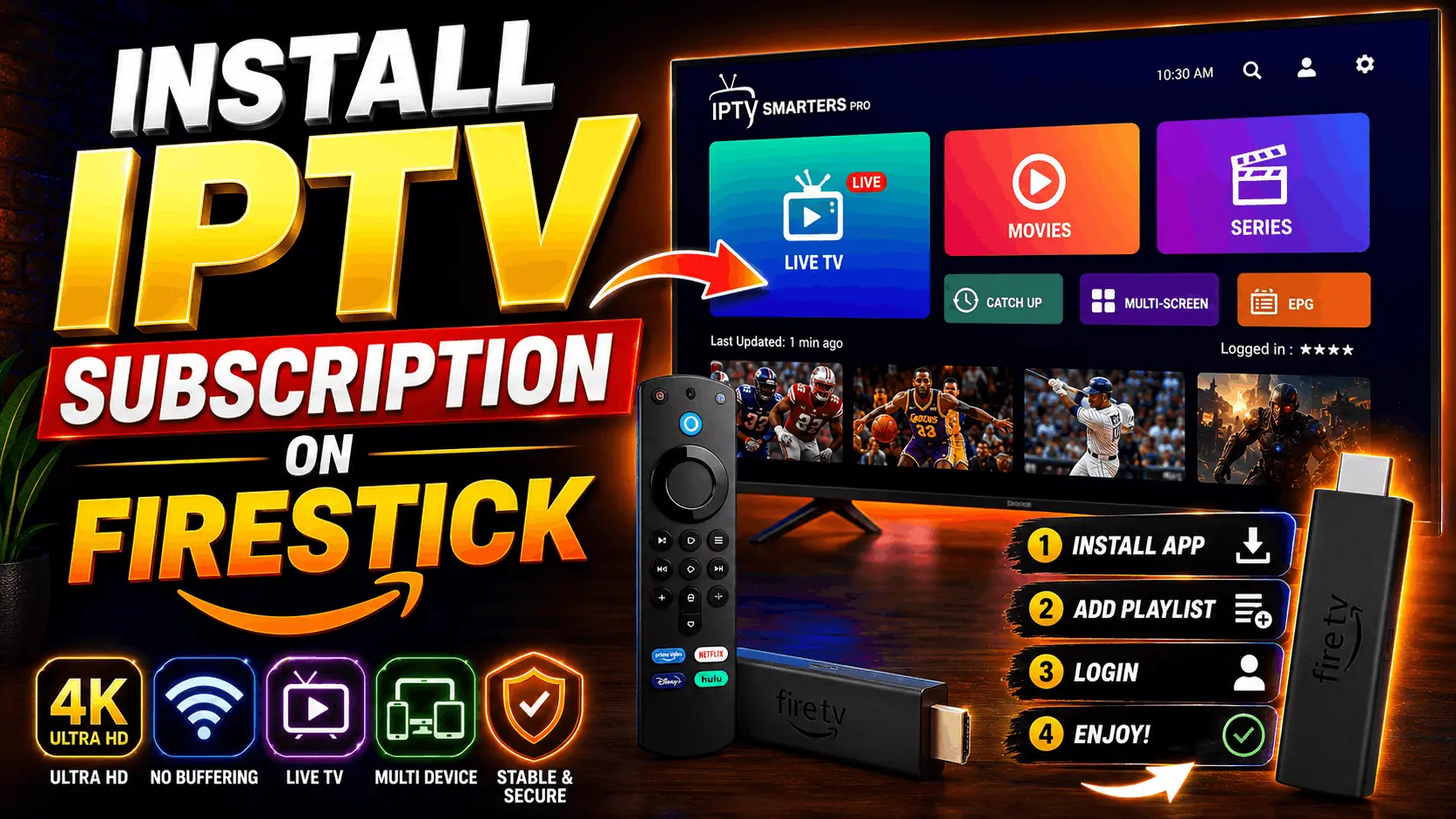

Amazon Fire TV Stick is the most popular device for IPTV in the USA in 2026 — cheap ($40-$60), universal, and powerful enough to handle 4K UHD streams. But installing an IPTV subscription on Firestick isn't a one-click Amazon Store install; the standard IPTV apps (IPTV Smarters Pro, TiviMate) aren't in the Amazon store, so you sideload them through a helper app called Downloader.
This guide walks through the full process step by step — enabling developer options, installing Downloader, sideloading IPTV Smarters Pro, adding your credentials, and troubleshooting the two or three things that occasionally go wrong. Total time: 15 minutes.
⚡ Quick answer: To install IPTV Subscription on Firestick — enable "Apps from Unknown Sources", install Downloader from Amazon Store, use Downloader to install IPTV Smarters Pro, then log in with your M3U URL or Xtream Codes credentials. Complete instructions below. New to IPTV? Start with our complete IPTV subscription guide.
What You'll Need
- Amazon Fire TV Stick (any model — Lite, 4K, 4K Max, Fire TV Cube)
- An active IPTV subscription (M3U URL or Xtream Codes credentials)
- Wi-Fi with at least 25 Mbps for HD, 50+ Mbps for 4K
- 10-15 minutes
No jailbreaking, no rooting, no VPN required for setup — everything below uses standard Fire TV features.
Step 1: Enable Apps From Unknown Sources
Fire TV blocks non-Amazon apps by default. Turn that off:
- From Fire TV Home, go to Settings (gear icon, top-right)
- Scroll to My Fire TV (or Device & Software on newer versions)
- Select Developer options. If you don't see it, click "About" 7 times to unlock it.
- Turn ON Apps from Unknown Sources
- Confirm the security warning
Step 2: Install Downloader
Downloader is a free Amazon-approved sideloading helper. Install it from the Amazon Store:
- From Fire TV Home, use the search bar (magnifying glass, top-left)
- Search for Downloader
- Select the app (orange icon with a globe) and install
- Open Downloader
- On first launch, allow "Downloader access to files" when prompted
Step 3: Sideload IPTV Smarters Pro
Use Downloader to install IPTV Smarters Pro — the standard app for IPTV in the USA:
- In Downloader, click the URL bar
- Enter the official IPTV Smarters Pro APK URL provided by your IPTV service, or type: iptvsmarters.com/downloads to visit the official download page
- Click Go and wait for the APK to download (~40 MB)
- Click Install when the Fire TV installer opens
- Click Done after installation completes
- Delete the APK file when Downloader asks — it's not needed after install
Step 4: Add Your IPTV Subscription Credentials
Open IPTV Smarters Pro from Your Apps & Channels:
- Accept the terms of service on first launch
- Choose Login with Xtream Codes API (recommended) or Load Your Playlist or File/URL for M3U
- Enter your credentials from your IPTV Subscription order confirmation:
- Any Name — a label of your choosing (e.g., "Living Room")
- Username — from your order confirmation
- Password — from your order confirmation
- Server URL — the http:// address provided by your IPTV service
- Click Add User
- Wait for the channel list to load (typically 10-30 seconds on first login)
Step 5: Start Streaming
Once the channel list loads, you'll see the main IPTV Smarters Pro dashboard:
- Live TV — 30,000+ live channels sorted by category
- Movies — 100,000+ on-demand movies
- Series — 50,000+ on-demand TV series
- Sports — dedicated live sports section
- EPG — full electronic program guide
Click any channel to start streaming immediately. Setup complete.
Troubleshooting Common Firestick IPTV Issues
Downloader can't reach the URL
Check spelling. Fire TV keyboard shortcuts don't accept "www." — enter just the hostname. If URL is correct and download still fails, your ISP may be blocking the download — try a different download source or use a VPN.
"App not installed" error
Rare — usually caused by an older IPTV Smarters version conflicting with a newer one. Uninstall any existing version first (Settings → Applications → Manage Installed Applications → IPTV Smarters → Uninstall), then reinstall.
Channels won't load after login
Check that the server URL includes "http://" prefix (not "https://" unless your IPTV service specifies). Also verify the port number if your service uses a non-standard port.
Buffering during 4K streams
Fire TV Stick Lite doesn't handle 4K well. Upgrade to Fire TV Stick 4K Max for smooth UHD. Also check that your Wi-Fi is 5 GHz, not 2.4 GHz — 2.4 GHz can't reliably deliver 4K bandwidth.
App crashes at launch
Clear the app cache: Settings → Applications → Manage Installed Applications → IPTV Smarters → Clear Cache. Restart the Firestick if that doesn't fix it.
How do I test if setup works?
Claim a free trial before paying — full details in our IPTV free trial USA guide.
Frequently Asked Questions
How do I install an IPTV subscription on Firestick?
In summary: (1) Enable Apps from Unknown Sources in Fire TV Developer options. (2) Install Downloader from the Amazon Store. (3) Use Downloader to sideload IPTV Smarters Pro. (4) Log in with your IPTV subscription credentials (Xtream Codes API or M3U URL). Full step-by-step details in the article above. Total time: 15 minutes.
Is installing IPTV on Firestick legal?
Sideloading apps to a device you own is legal in the USA. Whether the IPTV service you use is legal depends on the provider — legitimate services with proper licensing (Sling TV, YouTube TV, Hulu Live) are fully legal; grey-area services put the legal risk on the provider, not the viewer.
Do I need to jailbreak my Firestick for IPTV?
No. Fire TV Stick supports sideloading apps natively through Developer options. No jailbreaking, rooting, or hardware modification required.
Which Firestick is best for IPTV?
Fire TV Stick 4K Max is the best current model for IPTV in 2026 — smoothly handles 4K UHD streams, has more RAM than the standard 4K, and better Wi-Fi 6 support. Around $60. Fire TV Stick Lite works for HD but struggles with 4K.
Do I need a VPN to use IPTV on Firestick?
Not required for setup or normal use. Some ISPs throttle streaming video during peak hours (Comcast, Spectrum, Verizon) — a basic VPN like NordVPN or Surfshark ($3-5/month) fixes throttling if it happens. Most users don't need a VPN initially.
What's the best IPTV app for Firestick?
IPTV Smarters Pro is the standard — clean UI, reliable, supports M3U and Xtream Codes, works with virtually every IPTV service. TiviMate is a strong alternative with more customization. Both are free to install.
Can I install IPTV Subscription on Firestick without a computer?
Yes — the entire process happens on the Firestick itself, using the Firestick remote. No computer, cable, or file transfer needed.
Ready to Start Streaming
Installing an IPTV subscription on Firestick is one of the easier sideload processes on Fire TV — a Downloader app, an IPTV Smarters Pro APK, and your credentials. 15 minutes end to end. Once installed, you have 30,000+ channels including NFL, NBA, MLB, ESPN, HBO on the same Firestick you already own.
If you haven't picked a provider yet, our best IPTV service providers USA 2026 guide ranks the top 5 for US viewers. Or claim a free trial with IPTV Subscription first — message us on WhatsApp and you'll have credentials within 15 minutes.